



A Vendor’s Guide to Conditional Category Attributes

A Vendor’s Guide to Conditional Category Attributes
Why Attributes Matter for Your Success
As a vendor on a multi-vendor marketplace, your product listings are your storefront. They are your salespeople, your brand ambassadors, and your customer service representatives—all working 24/7. The quality of your listings directly determines how many customers find your products, how many click through to view details, and ultimately, how many make a purchase.
Product attributes are the technical specifications that describe your products in structured, searchable, filterable ways. Unlike product descriptions (which are free-form text), attributes are standardized data points that help customers compare products, filter search results, and make informed buying decisions.
[Image: A split-screen comparison showing two product listings. Left side: A basic listing with just a title, price, and short description. Right side: A rich listing with attributes displayed as specification tables, filter badges, and comparison-ready data points. The right side should look significantly more professional and trustworthy.]
Before Dokan Conditional Category Attributes, marketplace vendors faced a frustrating challenge: every possible attribute for every possible product type was crammed into a single dropdown. Selling a handmade necklace? You had to scroll past “Engine Displacement,” “Screen Resolution,” and “Battery Chemistry” to find “Metal Type” and “Chain Length.” Selling a laptop? You waded through “Fabric Content” and “Organic Certification” to reach “RAM” and “Processor Speed.”
This chaos led to three critical problems:
-
Wasted Time: Vendors spent precious minutes hunting for relevant attributes, time that could have been spent sourcing products, marketing, or fulfilling orders.
-
Incomplete Listings: When attributes are hard to find, vendors skip them. Incomplete listings rank lower in search results and convert fewer browsers into buyers.
-
Customer Confusion: Shoppers rely on attributes to filter and compare. When listings lack key specifications, customers hesitate to buy—or worse, they buy the wrong item and initiate returns.
The new conditional attribute system changes everything. Now, when you select a category for your product, the marketplace automatically shows only the attributes that matter for that product type. This guide will teach you how to leverage this system to create listings that sell.
Understanding the New Attribute System
Let’s start with the fundamentals. When your marketplace administrator installs Dokan Conditional Category Attributes, they create a set of rules that map product categories to relevant attributes. As a vendor, you don’t need to understand the technical backend—you just need to know how to use the improved interface.
What Changed in Your Dashboard?
When you navigate to Vendor Dashboard > Products > Add New Product (or edit an existing product), you’ll notice the attribute section behaves differently:
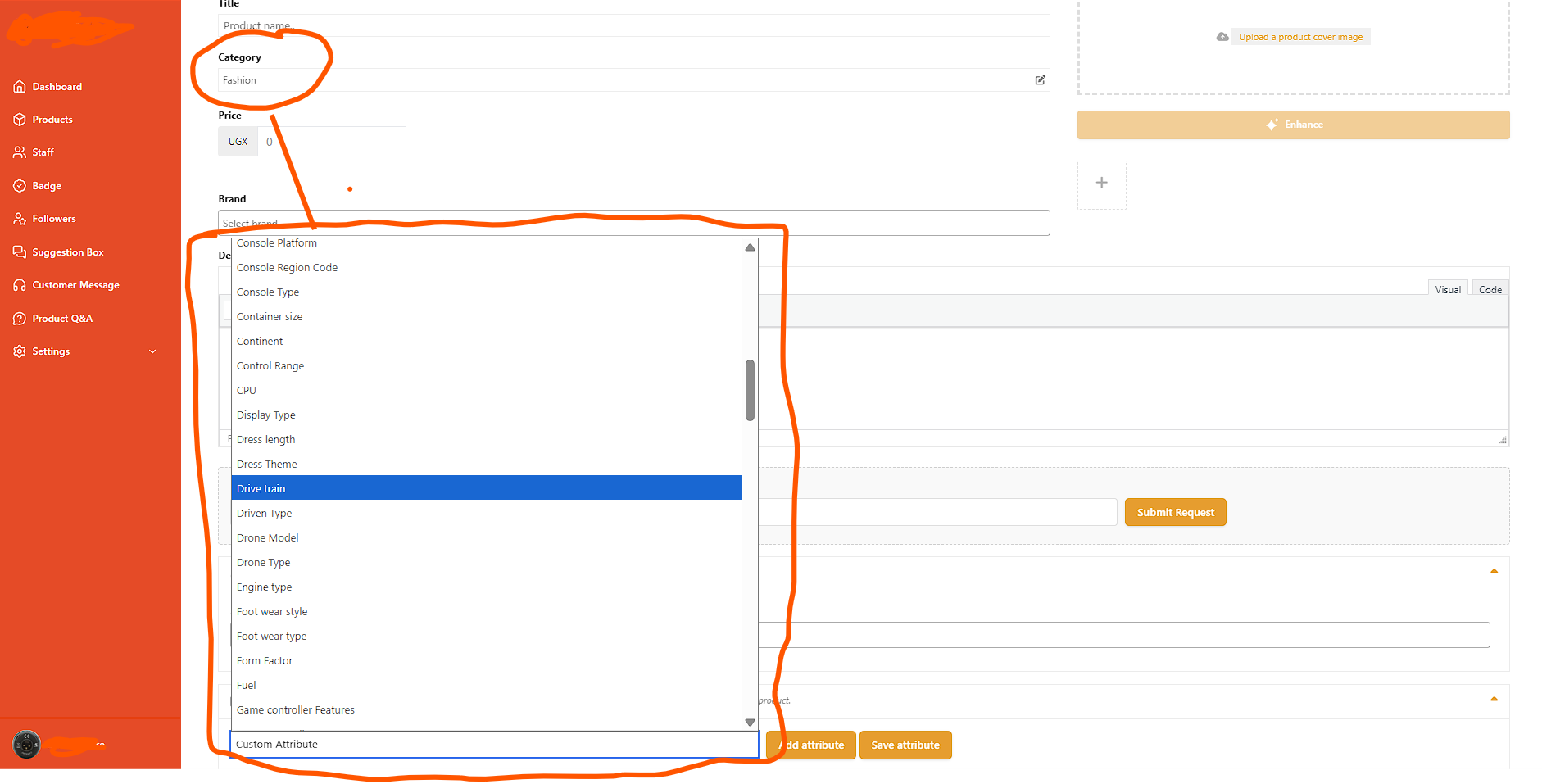
Before:
-
A single dropdown containing 50+ attributes
-
No context about which attributes applied to your product type
-
Manual scrolling and guessing
-
Risk of selecting irrelevant attributes that confuse customers
After:
-
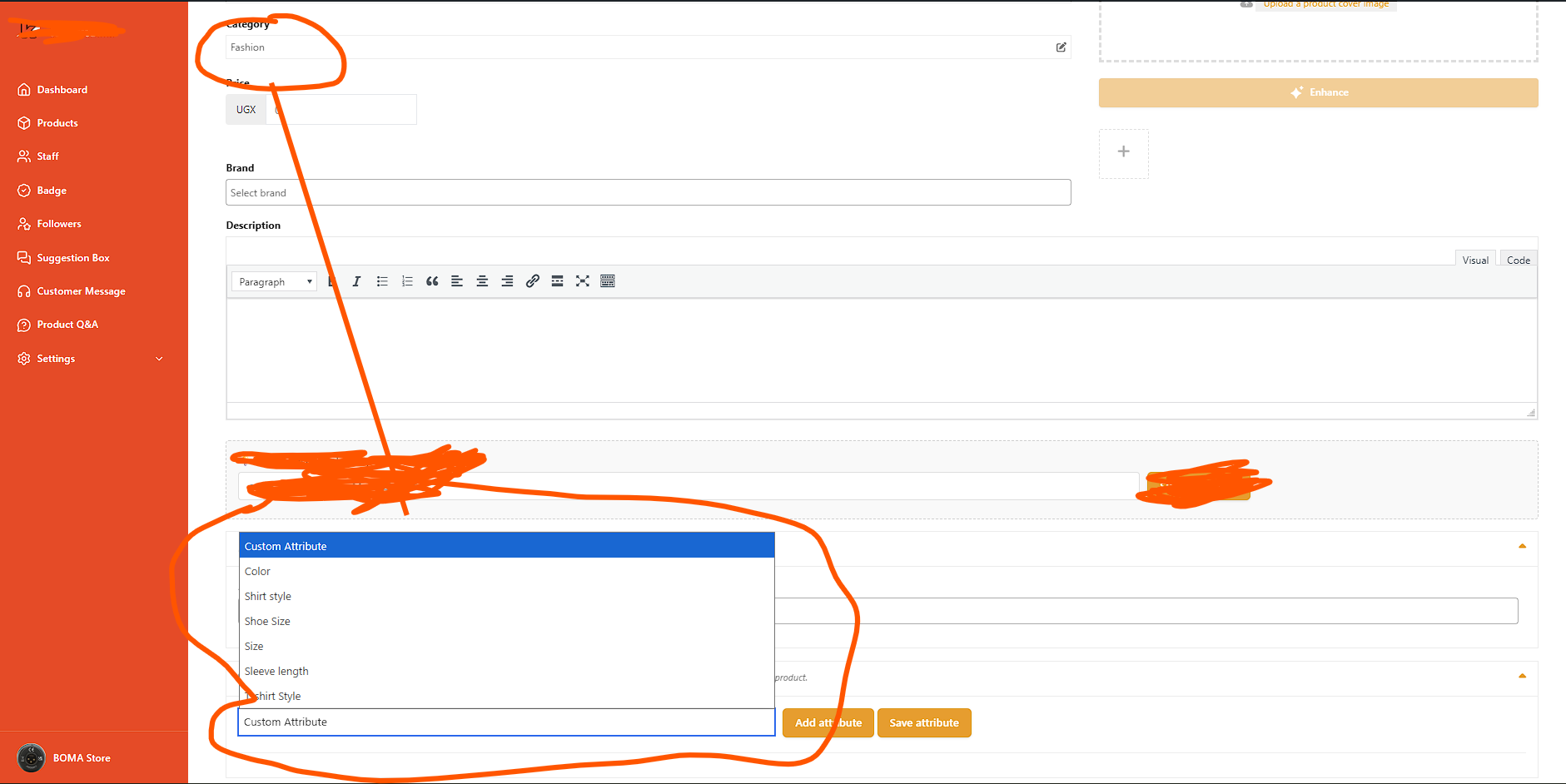
A filtered dropdown showing only relevant attributes (typically 5-15 instead of 50+)
-
Dynamic updates when you change categories
-
Clear, contextual options that match your product type
-
Automatic removal of attributes that no longer apply
How the Filtering Works
The system is intelligent and works in real-time:
-
You select a category (or multiple categories) for your product using the category selector.
-
The system checks the rules set by your marketplace administrator for those categories.
-
The attribute dropdown updates to show only allowed attributes.
-
If you change categories, the dropdown updates again.
-
When you save, the system validates your attributes and removes any that don’t match your final category selection.
This happens seamlessly without page refreshes, thanks to modern technology running in your browser.
What You Need to Know About Inheritance
Marketplace categories are often organized in hierarchies. For example:
plain
Clothing
├── Men's Clothing
│   ├── Shirts
│   └── Pants
└── Women's Clothing
    ├── Dresses
    └── Tops
If your administrator set attributes for “Clothing,” those attributes will also appear when you list products in “Shirts” or “Dresses”—unless the administrator set specific, different rules for those subcategories. This inheritance ensures consistency while allowing specialization.
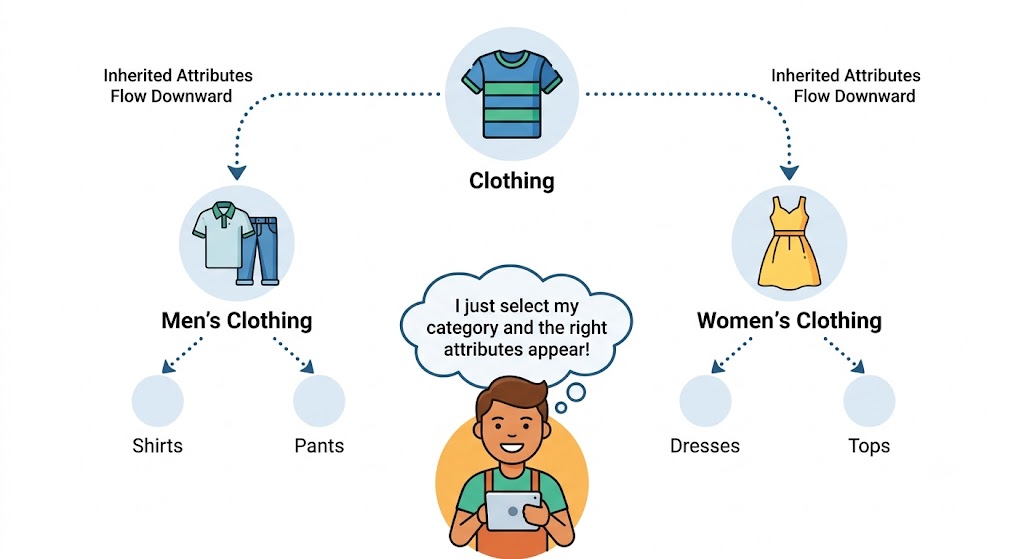
As a vendor, you don’t configure inheritance—you simply benefit from it. The attributes you see are the right ones for your specific product category, whether they come from direct rules or inherited from a parent category.
Choosing the Right Attributes for Your Products
Not all attributes are equally valuable. Strategic attribute selection improves your search ranking, helps customers decide, and reduces returns. Here’s how to choose wisely.
The Attribute Priority Framework
When you see your filtered attribute list, evaluate each option using this framework:
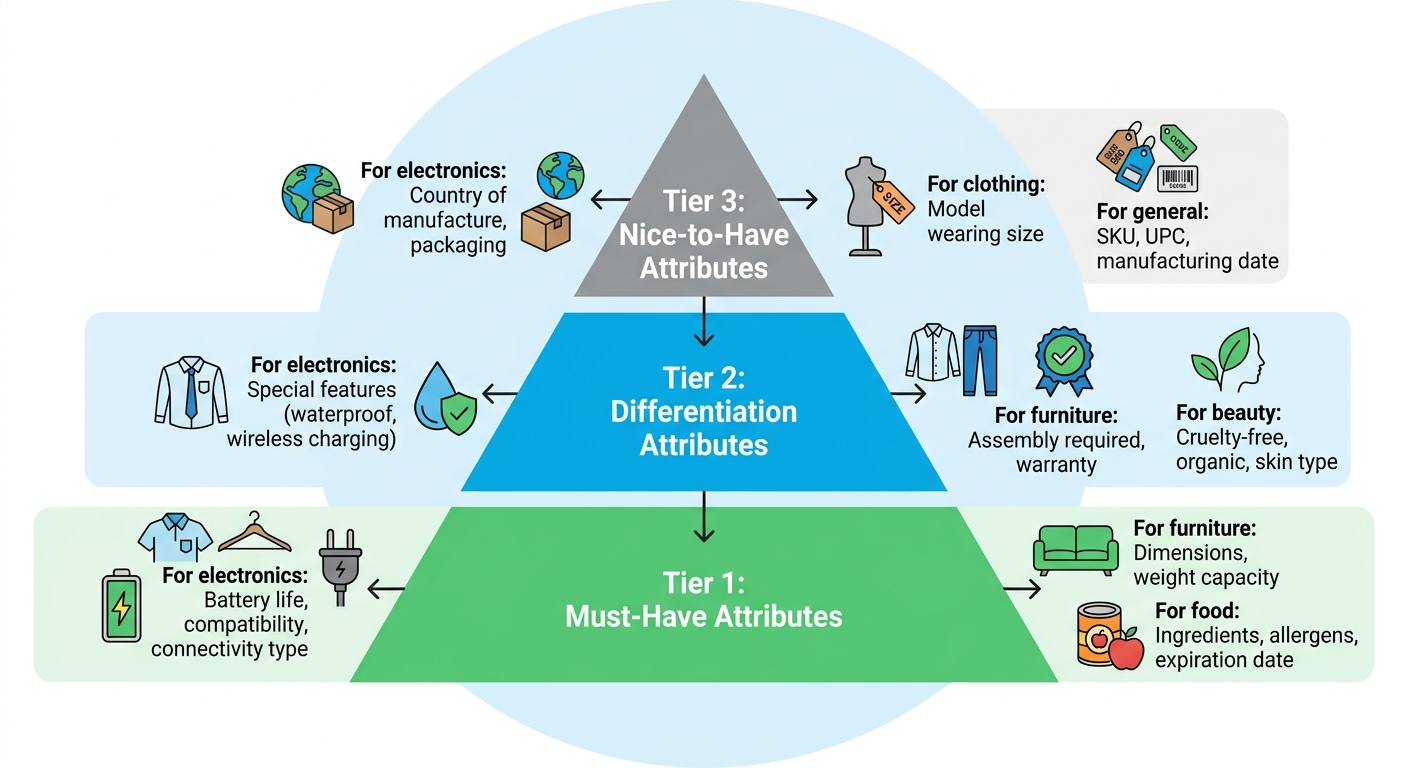
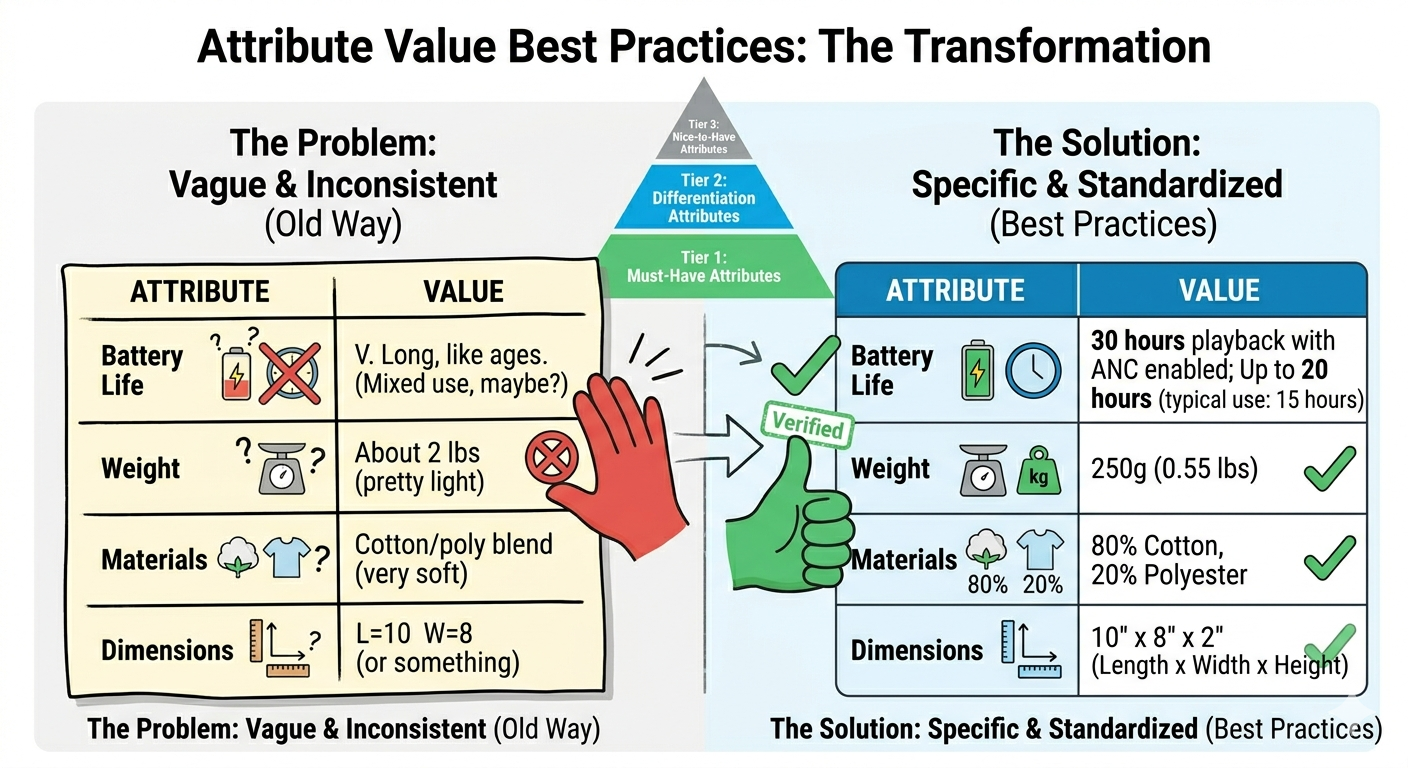
Tier 1: Must-Have Attributes (Always Include) These are deal-breakers for customers. Without them, shoppers won’t buy or will return the product.
-
For electronics: Battery life, compatibility, connectivity type
-
For clothing: Size, material, care instructions
-
For furniture: Dimensions, weight capacity, material
-
For food: Ingredients, allergens, expiration date
Tier 2: Differentiation Attributes (Include When Applicable) These help your product stand out from competitors and justify premium pricing.
-
For electronics: Special features (waterproof, wireless charging, fast charge)
-
For clothing: Fit type, occasion, style details
-
For furniture: Assembly required, warranty, design style
-
For beauty: Cruelty-free, organic, skin type
Tier 3: Nice-to-Have Attributes (Include If Known) These add completeness but aren’t critical to the purchase decision.
-
For electronics: Country of manufacture, packaging details
-
For clothing: Model wearing size, fabric origin
-
For general: SKU, UPC, manufacturing date
Attribute Value Best Practices
How you write attribute values matters as much as which attributes you choose:
Be Specific:
-
Bad: “Long battery”
-
Good: “30 hours playback with ANC enabled”
Use Standard Units:
-
Bad: “About 2 pounds”
-
Good: “250g (0.55 lbs)”
Be Honest:
-
Never exaggerate specifications. If battery life is “up to 20 hours” under ideal conditions, say “Up to 20 hours (typical use: 15 hours).” Misleading attributes lead to negative reviews and returns.
Use Consistent Formatting:
-
If you list dimensions, always use the same order: Length × Width × Height
-
If you list materials, use percentages where applicable: “80% Cotton, 20% Polyester”
Include Variations:
-
If your product comes in multiple colors or sizes, don’t list them all in one attribute value. Use variable products (covered in the next section) instead.
Attributes That Drive Filter Usage
On the frontend of the marketplace, customers use attributes to filter products. The most commonly used filters vary by category:
-
Electronics: Price, Brand, Customer Rating, Storage/RAM, Screen Size
-
Fashion: Size, Color, Material, Price, Brand
-
Home: Price, Material, Color, Dimensions, Style
-
Sports: Size, Activity Type, Material, Brand, Price
When you fill in these high-traffic attributes accurately, your products appear in more filtered results, increasing your visibility and click-through rate.
Common Mistakes and How to Avoid Them
Even experienced vendors make mistakes with attributes. Here are the most common pitfalls and how to steer clear of them.
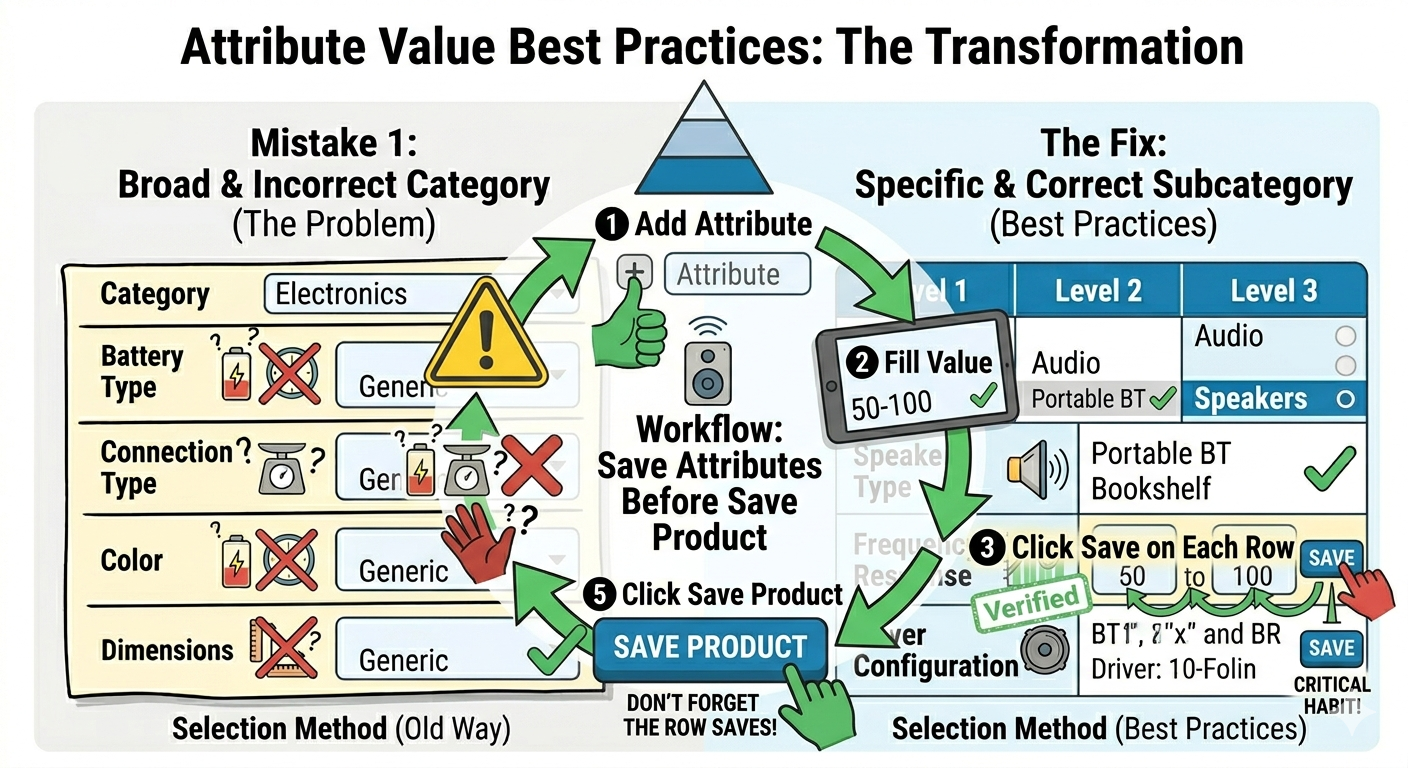
Mistake 1: Selecting the Wrong Category
The Problem: You list a wireless speaker under “Electronics” instead of “Electronics > Audio > Speakers.” The attribute dropdown shows generic electronics attributes instead of audio-specific ones like “Frequency Response” and “Driver Configuration.”
The Fix: Always drill down to the most specific subcategory available. If you’re unsure which category fits best, check how similar products are categorized on your marketplace or ask your administrator.

Mistake 2: Leaving Important Attributes Empty
The Problem: You skip “Battery Life” because you don’t have the exact number memorized. Customers who filter by “Battery Life > 20 Hours” never see your product.
The Fix: Keep a product specification sheet handy when creating listings. If you genuinely don’t know a value, research it before listing. Never publish a product with blank critical attributes.
Mistake 3: Using Attributes as Keywords
The Problem: You stuff attribute values with keywords: “Bluetooth Wireless Headphones Noise Cancelling Premium Best Quality 2026.”
The Fix: Attributes are structured data, not SEO keyword fields. Use clear, factual values. The SEO benefit comes from the structured nature of the data, not keyword stuffing. Write “Bluetooth 5.2” not “Bluetooth Wireless Headphones Best Quality 2026 Amazing Sound.”
Mistake 4: Creating Duplicate Attributes
The Problem: Your marketplace has both “Color” and “Colour,” or “Size” and “Clothing Size.” You fill in one but not the other, or you fill in both with conflicting values.
The Fix: The conditional attribute system should prevent this by showing only the standardized attributes your administrator configured. If you see duplicates, notify your marketplace admin—they may need to clean up the WooCommerce attributes list.
Mistake 5: Ignoring Attribute Inheritance Changes
The Problem: Your marketplace admin updates the attribute rules for a category. Your existing products now have attributes that are no longer relevant, or they’re missing newly added required attributes.
The Fix: Periodically review your active listings. When you receive notifications about category changes from your marketplace, audit your products in those categories and update attributes accordingly. Set a calendar reminder to review your top 20 listings monthly.
Mistake 6: Forgetting to Save Attributes Before Saving the Product
The Problem: You add attribute rows but forget to click “Save Attribute” on each row before clicking the main “Save Product” button. Your attributes disappear.
The Fix: Get into the habit of saving each attribute row immediately after filling it in. Don’t batch-add multiple rows without saving. The Dokan interface makes this easy with prominent save buttons on each attribute row.
Advanced Tips for Power Sellers
Once you’ve mastered the basics, these advanced strategies will help you outsell your competition.
Tip 1: Leverage Attributes for Comparison Shopping
Customers love to compare products side-by-side. Marketplaces with comparison features pull data directly from attributes. To win comparisons:
-
Fill in every attribute that your competitors typically leave blank
-
Use precise numerical values rather than vague descriptors (customers trust numbers)
-
Highlight your advantages in the attribute values (e.g., “30 Hours” vs. a competitor’s “20 Hours”)
Tip 2: Use Attributes to Reduce Pre-Sale Questions
Every pre-sale question you prevent is a potential sale saved. Customers who have to ask “What size battery does this use?” or “Is this waterproof?” may abandon their cart before you respond.
Audit your last 20 customer inquiries. If multiple questions could be answered by an attribute, ensure that attribute is filled in on all future products. Common examples:
-
“What are the dimensions?” → Always include dimensions for physical products
-
“Does this work with [device]?” → Include compatibility attributes
-
“What material is this made of?” → Include material attributes with percentages
Tip 3: Batch Update Products Using Quick Edit
If your marketplace allows it, use quick edit or bulk edit features to update attributes across multiple products at once. This is especially useful when:
-
You receive updated specifications from a manufacturer
-
A new attribute is added to your category (e.g., “Sustainability Rating”)
-
You need to correct a consistent error across a product line
Tip 4: Create Attribute-Based Product Bundles
Some marketplaces allow you to create bundles or grouped products. Use attributes to make bundles more compelling:
-
“Complete Home Office Kit” with attributes showing total weight, combined dimensions, and compatibility
-
“Summer Fashion Set” with size attributes for each included item
-
“Tech Starter Pack” with connectivity attributes showing everything works together
Tip 5: Monitor Which Attributes Drive Your Sales
If your marketplace provides vendor analytics, look for correlation between attribute completeness and conversion rates. Products with 100% of recommended attributes filled in typically convert 20-40% better than products with sparse attributes.
Set a personal benchmark: aim for 95%+ attribute completeness on every new listing within 30 days of upload.
How Attributes Affect Your SEO and Discoverability
Search engine optimization isn’t just about keywords in your title and description. Structured attribute data plays a crucial role in how search engines understand your products and how marketplace internal search ranks your listings.
Internal Marketplace Search
Most multi-vendor marketplaces have internal search engines that index product attributes. When a customer searches for “bluetooth headphones 30 hour battery,” the marketplace search engine looks at:
-
Product titles
-
Product descriptions
-
Product attributes (especially attribute values)
If you filled in “Battery Life” as “30 Hours,” your product matches that query. If you left it blank or wrote “Long Lasting,” you miss the match.
Action Item: Think about how customers search for your products. What specific phrases do they use? Map those phrases to attributes and ensure the values contain those exact terms.
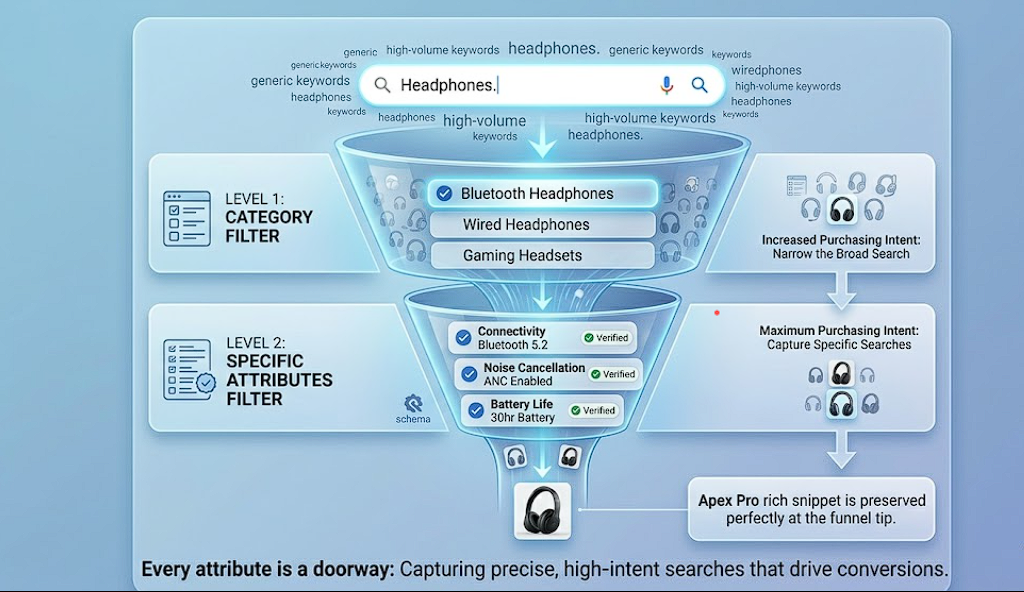
Google Search and Rich Snippets
When your marketplace outputs structured data (Schema.org/Product), your attributes can appear directly in Google search results as rich snippets:

Rich snippets increase click-through rates by 30% on average because they provide immediate answers to searcher questions. To maximize rich snippet potential:
-
Use standard attribute names that Google recognizes (e.g., “Color,” “Material,” “Weight”)
-
Use numerical values with units where possible
-
Ensure your marketplace theme supports structured data output
Category Page Filtering
On category pages, your products appear alongside competitors. The marketplace’s layered navigation filters products by attribute values. If a customer is browsing “Headphones” and filters by “Noise Cancellation: Active,” only products with that exact attribute value appear.
The SEO implication: Products that don’t have the “Noise Cancellation” attribute filled in disappear from filtered results. They’re still on the page, but they’re invisible to customers who use filters. Since 60-70% of shoppers use filters when browsing categories, missing attributes means missing the majority of your potential audience.
Long-Tail Keyword Opportunities
Attributes help you capture long-tail searches—specific, high-intent queries with lower competition:
-
“Men’s running shoes size 11 waterproof” → Matches Size + Activity + Water Resistance attributes
-
“Laptop 16GB RAM 1TB SSD under $1000” → Matches RAM + Storage + Price attributes
-
“Organic cotton baby blanket hypoallergenic” → Matches Material + Safety attributes
Each attribute you complete is another doorway for customers to find your product.
Managing Variable Products and Variations
Variable products are one of WooCommerce’s most powerful features, allowing you to sell one product with multiple options (sizes, colors, materials). The conditional attribute system works seamlessly with variations, but there are specific workflows you need to understand.
What Are Variable Products?
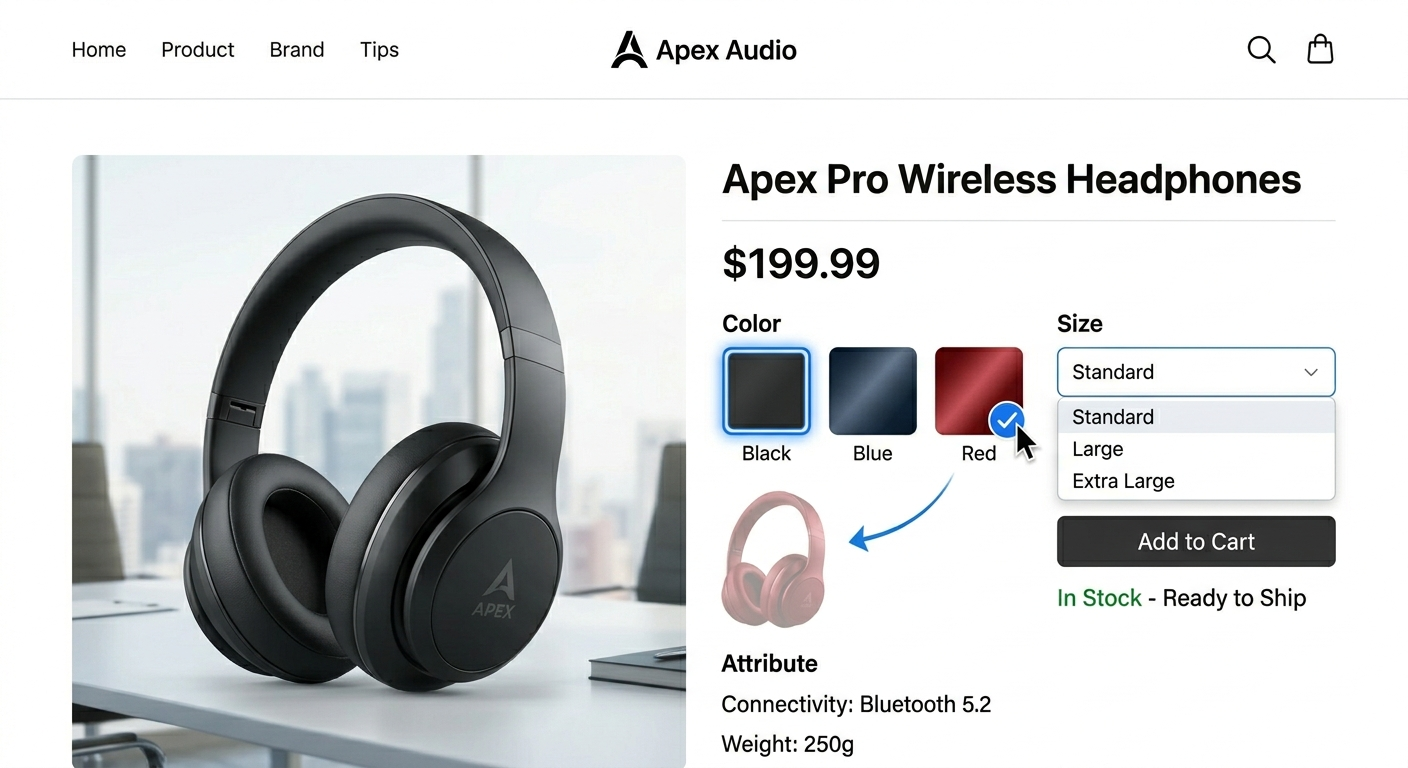
A variable product uses attributes to create distinct variations, each with its own SKU, price, stock level, and image. For example:
-
A t-shirt available in Small, Medium, Large, and XL
-
A phone case available in Black, Blue, and Red
-
A laptop available with 8GB RAM or 16GB RAM
How Conditional Attributes Affect Variations
When you create a variable product, you need to designate which attributes will be used for variations. The conditional attribute system ensures that only attributes relevant to your category can be used for variations.
Example Scenario: You’re selling a dress in the “Women’s Clothing > Dresses” category. The filtered attributes might include:
-
Color
-
Size
-
Length
-
Occasion
-
Material
You can use any of these for variations, but the most logical choices are Color and Size.
Updating Existing Products
Your product catalog isn’t static. You’ll need to update listings for price changes, stock updates, new information, or category corrections. The conditional attribute system affects how you manage these updates.
When You Change a Product’s Category
If you realize a product is miscategorized and you change it:
-
Edit the product and select the correct category.
-
The attribute dropdown will update to show the new category’s allowed attributes.
-
Any attributes that don’t exist in the new category will be removed when you save.
-
You may need to add new attributes that are relevant to the correct category.
Warning: Changing categories can remove attribute data. If you have important attributes filled in, note their values before changing categories so you can re-enter them if they’re still relevant.
Adding New Attributes to Existing Products
If your marketplace administrator adds new attributes to your category (e.g., adding “Carbon Footprint” to all electronics), you should update your existing products:
-
Go to Vendor Dashboard > Products.
-
Find the product and click Edit.
-
Scroll to the Attributes section.
-
The new attribute should appear in the dropdown.
-
Add the appropriate value and save.
Pro Tip: Set a monthly reminder to audit your top 10 best-selling products and ensure all attributes are current and complete.
Bulk Updates
If you have dozens or hundreds of products that need the same attribute update, contact your marketplace administrator. They may have tools to perform bulk updates, or they might be able to export your products, update the attributes in a spreadsheet, and re-import them.
