



TroubleShooting
TROUBLESHOOTING
3.1 Introduction to Diagnostic Methodology
Even in carefully engineered software, operational issues can arise due to environmental factors, third-party conflicts, configuration errors, or edge cases in user behavior. This troubleshooting guide provides a systematic framework for diagnosing and resolving problems with Dokan Conditional Category Attributes version 3.2. The guide is organized by symptom category, progressing from the most common and easily resolved issues to the more complex and esoteric scenarios.
Before engaging with any specific troubleshooting section, establish a baseline diagnostic environment. Disable all caching mechanisms (including page caches, object caches, and CDN edge caching), switch to a default WordPress theme such as Storefront or Twenty Twenty-Four, and deactivate all plugins except WooCommerce, Dokan, and Dokan Conditional Category Attributes.
If the issue resolves under this baseline, reactivate components one by one to identify the conflicting element. This isolation methodology prevents wasted time and ensures that you are addressing the root cause rather than a symptom.
3.2 License Activation Failures
License activation is the most common friction point for new installations. If you encounter an error during activation, consult the following diagnostic tree.
Symptom: “Invalid License Key” Error
This indicates that the licensing server does not recognize the submitted key. First, verify that you have copied the key exactly, including any hyphens or alphanumeric segments. License keys are case-sensitive. If you purchased the plugin through a marketplace or reseller, ensure that the key has been properly provisioned in the licensing database—it may take up to fifteen minutes after purchase for the key to propagate through the activation servers.
This indicates that the licensing server does not recognize the submitted key. First, verify that you have copied the key exactly, including any hyphens or alphanumeric segments. License keys are case-sensitive. If you purchased the plugin through a marketplace or reseller, ensure that the key has been properly provisioned in the licensing database—it may take up to fifteen minutes after purchase for the key to propagate through the activation servers.
Symptom: “Domain Mismatch” Error
The license key is bound to a specific domain. If you are attempting to activate on a domain different from the one registered at purchase, the server will reject the request. Check whether your site URL in WordPress Settings > General includes a
The license key is bound to a specific domain. If you are attempting to activate on a domain different from the one registered at purchase, the server will reject the request. Check whether your site URL in WordPress Settings > General includes a
www. prefix. The plugin strips this prefix during validation, but if your purchase was registered for example.com and your WordPress settings specify www.example.com, the mismatch may still occur depending on server configuration. Contact support to reassign the domain or deactivate the key from its previous installation.Symptom: “Activation Server Unreachable” Error
This indicates a network-level failure between your WordPress host and the licensing server. Verify that your server allows outbound HTTP POST requests to external domains. Some managed hosts or aggressive firewall configurations block outbound traffic by default. Check with your hosting provider that cURL is enabled and that ports 80 and 443 are open for outbound connections. If your server uses a proxy, ensure that WordPress’s HTTP API is configured to route through it via the
This indicates a network-level failure between your WordPress host and the licensing server. Verify that your server allows outbound HTTP POST requests to external domains. Some managed hosts or aggressive firewall configurations block outbound traffic by default. Check with your hosting provider that cURL is enabled and that ports 80 and 443 are open for outbound connections. If your server uses a proxy, ensure that WordPress’s HTTP API is configured to route through it via the
WP_HTTP_PROXY_* constants in wp-config.php.Symptom: License Activates but Reverts to Inactive
If the license appears active immediately after activation but shows as inactive on subsequent page loads, the options table may not be persisting writes. This can occur on hosts with aggressive object caching that improperly handles the WordPress Options API. Flush your object cache (Redis, Memcached, or file-based) and check whether the option
If the license appears active immediately after activation but shows as inactive on subsequent page loads, the options table may not be persisting writes. This can occur on hosts with aggressive object caching that improperly handles the WordPress Options API. Flush your object cache (Redis, Memcached, or file-based) and check whether the option
wc_[hash]_attr_cfg exists in the wp_options table. If the option is missing, your database user may lack INSERT or UPDATE privileges on the options table.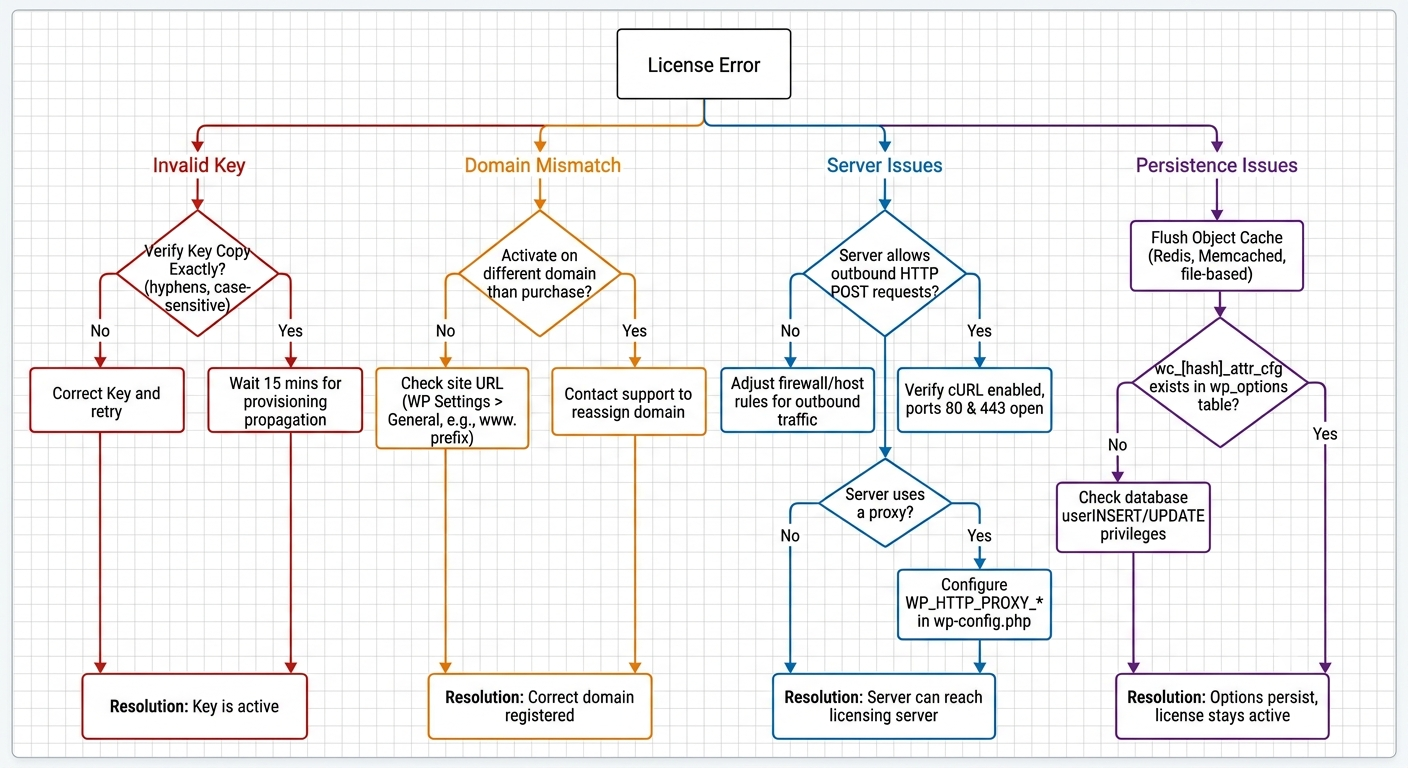
3.3 Attributes Not Appearing in Dokan Dashboard
If vendors report that attributes are missing from the product creation or editing interface, the issue typically falls into one of four categories: license inactivity, category misconfiguration, JavaScript failure, or theme interference.
License Inactivity: If the license has expired or was never activated, the plugin enters a dormant state. It does not filter attributes, but more importantly, it does not inject the configuration JavaScript into the Dokan dashboard. Verify the license status on the Attribute Gate page. If inactive, reactivate or renew the license.
Category Misconfiguration: Confirm that the category the vendor has selected actually has attributes configured. Navigate to Products > Categories, edit the category in question, and verify that the Allowed Attributes meta box shows selected attributes. If the category relies on inheritance, verify that a parent category has a valid configuration.
Remember that an empty configuration (no attributes selected) results in all attributes being shown, while a configuration with explicit selections restricts the list. If you see the placeholder text “No attributes restricted—vendors will see all global attributes,” the category is effectively unrestricted.
JavaScript Failure: Open the browser’s developer console (F12) on the Dokan vendor dashboard product page. Look for red error messages. Common JavaScript failures include jQuery conflicts (if another plugin loads an outdated jQuery version),
window.X7M being undefined (indicating the server-side script injection failed), or MutationObserver errors (indicating the Dokan DOM structure has changed in a newer version).If
window.X7M is undefined, verify that the dokan_is_seller_dashboard() function is returning true. Some custom Dokan themes override the dashboard detection logic.Theme Interference: Custom Dokan themes often replace the standard product edit templates with their own HTML structures. If the theme uses different CSS selectors for the category input holder or the attribute dropdown, the plugin’s JavaScript may fail to attach its listeners. The plugin targets selectors such as
.dokan-cat-inputs-holder, select#predefined_attribute, and select.add_attribute_id. If your theme uses different selectors, you may need to implement a custom JavaScript bridge or contact the theme developer for compatibility adjustments.3.4 Category Inheritance Not Functioning
When child categories do not inherit attributes from parent categories, the issue is usually related to term metadata resolution or caching.
First, verify the actual term metadata in the database. Using phpMyAdmin or a database management plugin, query the
wp_termmeta table for the child category ID and the meta key _allowed_attributes.If the child category has an empty array or a null value stored in this meta key, it will not inherit from the parent; instead, it will behave as an unrestricted category. This can happen if an administrator previously saved the child category with no attributes selected, which writes an empty (but not null) configuration to the database. To fix this, delete the
_allowed_attributes meta row for the child category entirely. When the meta row is absent, the plugin will fall back to parent inheritance.Second, check for term caching plugins. Some performance plugins cache term metadata aggressively. If you recently modified a parent category’s attributes but do not see the changes reflected in child categories, flush the term cache. The plugin does not implement its own term cache invalidation because it relies on WordPress’s native cache clearing during term updates; however, third-party caching layers may intercept and persist stale data.
Third, ensure that the child category is actually linked to the parent in the WordPress taxonomy. If the parent-child relationship was broken during an import or migration, the ancestry traversal will fail. Verify the relationship in Products > Categories by observing the indentation in the category list.
3.5 Frontend Filter Display Issues
If attribute filters are missing or incorrect on frontend category pages, perform the following checks.
License State: Frontend filtering requires an active license. The plugin does not filter frontend layered navigation for inactive licenses to prevent unauthorized usage.
Theme Compatibility: Many WooCommerce themes implement custom layered navigation widgets that bypass standard WooCommerce filter hooks. If your theme uses its own query logic, the plugin’s filter callback may never fire. Switch to Storefront temporarily to test whether the filters appear correctly under the default theme. If they do, your theme is the culprit. You may need to add a custom filter that bridges the theme’s attribute query with the plugin’s resolution engine.
Empty Category Configuration: If a category has no attribute restrictions configured and no inherited restrictions, the plugin returns the full attribute set. However, if the category has an explicit empty configuration (an empty array saved to metadata), the plugin may return an empty array, resulting in no filters. Check the category configuration as described in the previous section.
Hook Priority: The plugin attaches its frontend filter at priority 100. If another plugin or theme attaches a conflicting filter at a later priority, it may override the plugin’s output. You can adjust the priority by removing the plugin’s filter and re-adding it at a different priority in your theme’s
functions.php file, though this requires developer expertise.3.6 Product Save and Data Loss
If vendors report that their attributes disappear after saving a product, the plugin’s server-side sanitizer is likely removing attributes that it considers non-compliant.
When a product is saved, the plugin collects all category IDs assigned to the product. It resolves the allowed attribute set for each category and computes the union of all permitted attributes. Any global attribute (prefixed with
pa_) on the product that is not in this union is stripped. If a vendor added an attribute before selecting a category, or if they selected a restricted category and then added a non-permitted attribute via a backdoor method, the sanitizer will remove it during save.To diagnose, edit the product as an administrator and note which categories are selected. Then check the attribute restrictions for those categories. If the missing attribute is not in the allowed set, the sanitizer is behaving correctly. If you believe the attribute should be allowed, add it to the category configuration.
If attributes are disappearing despite being in the allowed set, there may be a serialization issue in the term metadata. Corrupted serialized arrays can cause the plugin to interpret the configuration as empty. Re-save the category configuration to regenerate the serialized metadata.
3.7 JavaScript and jQuery Conflicts
The plugin’s Dokan dashboard integration relies on jQuery and assumes that jQuery is loaded in no-conflict mode, which is standard for WordPress. If another plugin loads a second instance of jQuery (for example, an outdated version from a CDN), the plugin’s
$ shorthand may fail.In the browser console, check whether
jQuery is defined and whether jQuery.fn.jquery reports a version of 1.12.4 or higher (WordPress’s bundled version). If you see multiple jQuery versions, identify the offending plugin and dequeue its script. You can also force the plugin to load after other scripts by adjusting the script dependency chain, though this requires code modification.If Select2 dropdowns are not updating visually despite the underlying
<select> element having the correct options, the Select2 instance may need to be destroyed and recreated. The plugin attempts to trigger change.select2, but some Select2 versions or custom configurations require a full reinitialization. This is a known edge case with Dokan Pro versions that bundle custom Select2 builds.3.8 Database and Performance Problems
In rare cases, the plugin may contribute to slow page loads or database bloat.
If the Dokan vendor dashboard loads slowly, check the size of the
window.X7M JSON object. Marketplaces with thousands of categories and complex inheritance trees may generate a large configuration payload. While the plugin is optimized for this scenario, extremely deep taxonomies (15+ levels) can cause recursive resolution overhead. Consider flattening your taxonomy or using a caching plugin that supports fragment caching for the dashboard footer scripts.If database queries are slow, examine whether your
wp_termmeta table has proper indexing. WordPress creates an index on term_id and meta_key by default, but if this index was dropped during a migration or corruption event, metadata lookups will degrade to full table scans. Repair the table and reindex if necessary.3.9 Support Escalation Procedures
If you have exhausted the diagnostic steps in this guide and the issue persists, prepare the following information before contacting support:
-
System Status Report: Generate a system status report from WooCommerce > Status > Get system report.
-
Plugin List: A complete list of active plugins with versions.
-
Theme Information: The active theme name and version.
-
License Key: Your license key (do not post this publicly; submit it through a secure ticket portal).
-
Replication Steps: Exact steps to reproduce the issue, starting from a fresh product or category.
-
Console Logs: Screenshots or text exports of browser console errors.
-
Error Logs: Relevant entries from your server’s PHP error log or WordPress debug log (
WP_DEBUG_LOG).

